
How to Record Credit Card Processing Fees in QuickBooks: The 2026 Professional Guide

Recording fees manually is more than a tedious chore; it is a diagnostic signal that your current workflow is costing you far more than just time. Why should your team spend hours reconciling deposits that never seem to match your invoices? If you are tired of the confusion between gross and net accounting, you are not alone. It is frustrating to sacrifice your week to manual data entry just to solve a puzzle that should be automated. Learning how to accurately record credit card processing fees within your accounting system is the essential first step toward reclaiming that lost time and ensuring your books reflect your true margins.
This guide serves as your professional roadmap to mastering merchant fee accounting for 2026. We will show you how to move beyond basic entry and implement strategic workflows that guarantee a perfectly reconciled bank feed every month. You will learn the technical steps to handle bulk deposits, manage transaction fees, and gain full transparency into your processing costs. By following this structured path, you will reduce manual labor and transform your bookkeeping into a streamlined engine of clarity. We have done the heavy lifting so you can focus on leading your business with confidence.
Key Takeaways
- Resolve the "missing money" mystery by mastering the difference between gross and net deposits to eliminate reconciliation errors.
- Follow our technical walkthrough on how to record credit card processing fees in quickbooks using the negative line-item method for manual accuracy.
- Transition from manual labor to automated efficiency by using secure APIs that sync transaction data directly into your ledger.
- Protect your profit margins by identifying common pitfalls, such as the sales tax trap and duplicate bank feed entries.
- Turn your accounting data into a strategic asset by auditing your merchant statements to secure lower processing rates.
The Gross vs. Net Dilemma: Why Your Deposits Don’t Match
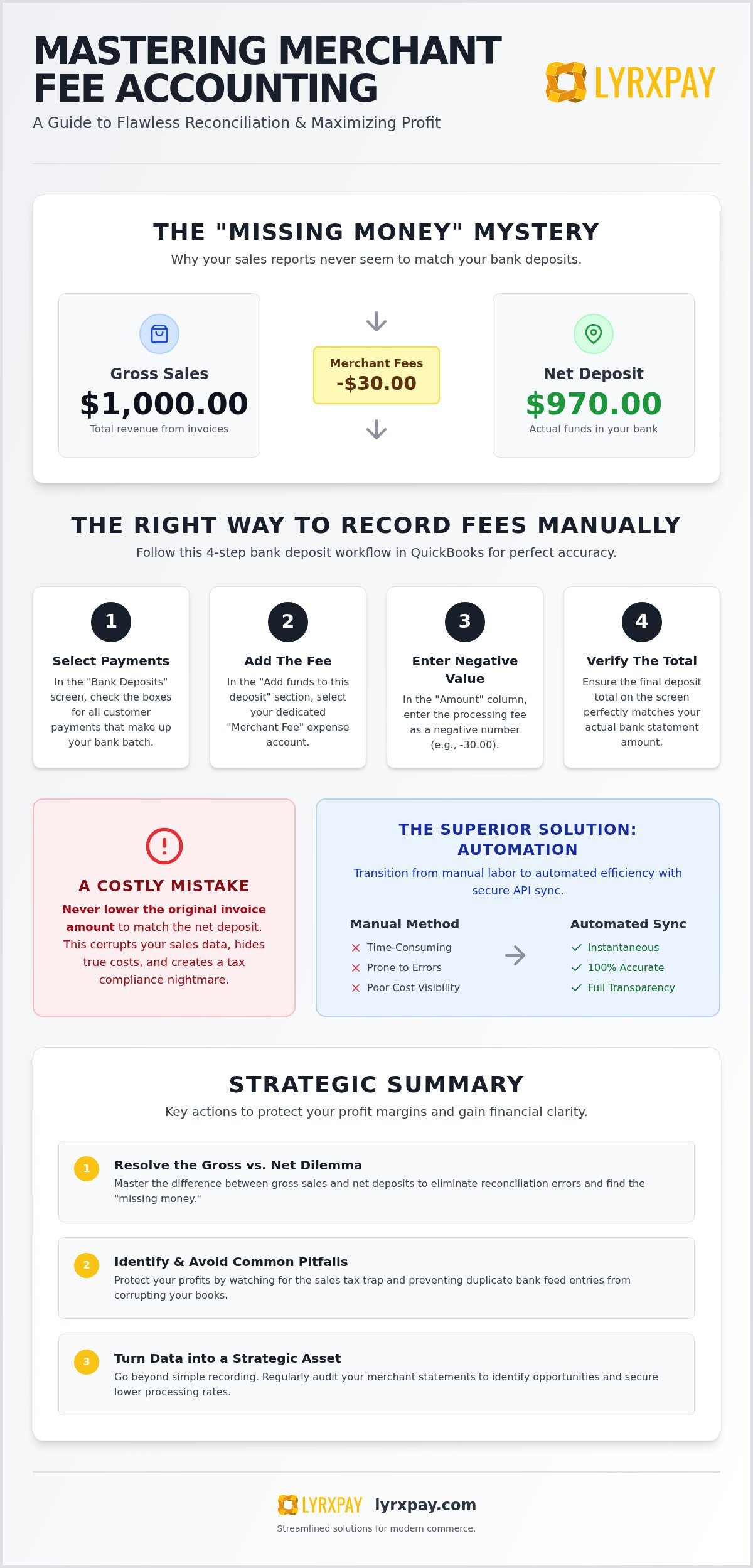
Have you ever looked at your bank feed and felt a wave of frustration? You know you sold $1,000 worth of services, but only $970 appeared in your account. This discrepancy is the core of the "Gross vs. Net" dilemma. Gross deposits represent your total sales volume before any deductions. Net deposits are the actual funds transferred by your payment processor after they subtract their cut. When these figures don't align, it creates a reconciliation nightmare. The "missing" money isn't actually gone, but it is unaccounted for in your bank feed, leading to errors that can take hours to fix. Mastering how to record credit card processing fees in QuickBooks is the only way to bridge this gap and keep your books accurate.
Processors generally follow two paths when handling these costs. Some use daily deduction, where they take their fee from every batch before it hits your bank. Others use monthly billing, depositing the gross amount and charging you one lump sum at the end of the period. Regardless of the method your provider uses, a Merchant Service Fee is the cost of liquidity and security in modern commerce. Identifying which method you are on is the first step in cleaning up your ledger.
The Impact on Your Chart of Accounts
To manage this properly, your Chart of Accounts must include a dedicated expense category for Merchant Service Fees. If you simply record the net amount as income, you lose all visibility into your true overhead. This "hidden" expense can quietly erode your margins without you ever noticing. It's a dangerous habit that masks the real cost of doing business. Fortunately, all-in-one business financial solutions solve this visibility gap by syncing detailed transaction data directly into your software, ensuring every penny is categorized correctly.
Understanding the Deposit Timeline
Cash flow depends on timing. While a standard two to three day settlement period is common, next-day deposits are a game-changer for liquidity. Timing differences between a sale and the final deposit often complicate month-end closing. If a sale happens on the 30th but the deposit arrives on the 2nd, your reports might look skewed. This delay makes it difficult to see your real-time financial health. Liquidity is the lifeblood of small business, especially in professional services where overhead remains constant regardless of when a credit card batch clears. Understanding how to record credit card processing fees in QuickBooks ensures you always know exactly where your cash stands at any given moment.
Manual Methods: How to Record Credit Card Processing Fees in QuickBooks
While automation is the ideal goal for any growing business, mastering how to record credit card processing fees in QuickBooks manually is a vital skill for maintaining a clean ledger. This knowledge acts as your safety net, allowing you to troubleshoot sync errors or handle complex batches that don't fit a standard mold. The most accurate way to handle these discrepancies is through the Bank Deposit method. This approach ensures your total deposit matches your bank statement to the penny without compromising the integrity of your individual sales receipts or invoices.
One common mistake seen on community forums is the suggestion to simply lower the invoice amount to match the net deposit. Don't do this. Adjusting the invoice ruins your sales reporting and creates a tax nightmare. Instead, you need to understand the components of processing fees such as interchange and markups to categorize them as a legitimate business expense. Recording the full sale and the separate fee provides the transparency you need to truly understand your overhead.
The Bank Deposit Workflow Step-by-Step
To begin, navigate to the "Bank Deposits" screen. In QuickBooks Online, this is found under the "+ New" button. In Desktop, you'll look for "Record Deposits" on the home screen. Once there, you will see a list of payments waiting to be deposited. Follow these steps to ensure accuracy:
- Select Payments: Check the boxes for the specific customer payments that make up your physical bank batch.
- Add the Fee: Scroll down to the "Add funds to this deposit" section. In the "Account" column, select your dedicated "Merchant Fee" expense account.
- Enter Negative Value: In the "Amount" column, enter the processing fee as a negative number (e.g., -15.50).
- Verify the Total: Ensure the "Deposit Total" at the bottom matches your bank statement exactly.
This simple workflow allows you to account for the expense in real-time, making your month-end reconciliation a breeze. If you find this process too time-consuming, exploring streamlined merchant services can help automate these steps for you.
Recording Monthly Fee Statements
Some processors don't deduct fees daily. Instead, they deposit the gross amount and bill you once per month. If your business operates this way, you won't record fees per deposit. Instead, you should create a single "Expense" or "Vendor Credit" for the total monthly fee once you receive your statement. Professional bookkeeping services recommend this for high-volume merchants because it keeps the bank feed from becoming cluttered with hundreds of tiny adjustments. For bulk adjustments, you can also use a Journal Entry, but always avoid using "Uncategorized Income" as a landing spot for fee discrepancies. It's a black hole for data that makes auditing your true costs nearly impossible.
Automating the Ledger: Integrated Merchant Service Solutions
Many business owners believe they are locked into a single software ecosystem if they want their payments to sync automatically. It is a common myth that only Intuit's proprietary processing can communicate directly with your ledger. This misconception often leads to businesses overpaying for transactions just to avoid the manual entry we discussed in the previous section. In reality, secure APIs allow third-party providers to push transaction data directly into your software, providing the same level of automation without the inflated costs. This bridge eliminates the need to wonder how to record credit card processing fees in quickbooks because the system handles the heavy lifting for you.
When your processing is integrated correctly, you gain access to "The Reconciliation Match" feature. Instead of manually creating deposits and adding negative line items, your bank feed will recognize the incoming funds and suggest a match to the transaction data already synced from your processor. This doesn't just save time; it removes the risk of human error that often leads to month-end discrepancies. Choosing low fee credit card processing that integrates with your ledger ensures you maintain perfect records while keeping more of your hard-earned revenue.
Integrating LyrxPay for Low-Fee Automation
Transitioning to an automated system doesn't have to be a technical headache. We provide a "Concierge" setup where experts handle the technical mapping of your accounts for you. This ensures that every transaction is pushed into the right category from day one. By automating this data flow, you can better utilize business liquidity management tools. Combined with next-day deposits, this automation gives you a real-time view of your cash position. You won't have to spend your weekends figuring out how to record credit card processing fees in quickbooks because the integration ensures your books are always current and reconcilable.
ACH vs. Credit Card: Strategic Fee Recording
Automation also allows you to diversify how you accept payments without complicating your bookkeeping. For B2B and professional services, ach services can slash your processing overhead by 50% or more compared to traditional cards. An integrated ledger tracks these lower-cost payments just as easily as credit card transactions. Furthermore, modern systems can automate the collection of "Level 3" data. This technical detail is required to secure lower rates on corporate and government cards, and having it sync automatically ensures you never miss out on these strategic savings. By automating these workflows, you move from being a data entry clerk to a strategic business leader.
Troubleshooting Common Reconciliation and Fee Errors
Even with a solid plan for how to record credit card processing fees in QuickBooks, technical hiccups are inevitable. The most frequent headache for business owners is the "Sales Tax Trap." This occurs when you calculate your processing fees based on the subtotal of a sale rather than the final total. Since processors charge their percentage on the entire amount swiped, including tax, your manual calculations will always be slightly off if you ignore that tax line. This small discrepancy might seem minor on a single transaction, but it compounds into a massive reconciliation error by month-end. Accuracy starts with acknowledging the full amount the customer paid.
Another common hurdle involves handling chargebacks and returned ACH items. When a payment is reversed, you can't simply delete the original transaction. Doing so erases the audit trail and confuses your bank feed. Instead, record a chargeback as a "Refund Receipt." This keeps your sales data intact while accurately reflecting that the funds have left your account. You should also record any associated chargeback fees as a separate expense category to track how much these disputes are costing your bottom line. If you want to stop fighting these battles alone, you can streamline your reconciliation process with a partner who advocates for your business during disputes.
Resolving Bank Feed Discrepancies
Duplicate transactions are the primary culprit behind messy bank feeds. This usually happens when your integrated processor pushes a transaction into QuickBooks and your bank feed imports the same deposit a few days later. To fix this, you must match the "Received" amount in the bank feed to the "Net" deposit you already recorded. If QuickBooks doesn't automatically suggest a match, don't create a new entry. Use the "Exclude" feature for the duplicate bank feed line to keep your ledger clean. Reconciliation is the only way to prove your books are 100% accurate.
Managing Chargebacks and Refunds
Maintaining a clear audit trail is vital for tax season and potential audits. When a refund occurs, it's best to use the "Refund Receipt" or "Credit Memo" functions rather than just adjusting a previous deposit. This transparency allows you to see exactly when and why money moved. Our concierge support at LyrxPay provides an added layer of defense here. We help resolve disputes before they impact your ledger, acting as a buffer between your business and the complexities of the payment networks. By following the "Golden Rule" of reconciling every account every 30 days, you catch these errors while the details are still fresh, ensuring your financial reports remain a reliable tool for growth.
Beyond Recording: Auditing and Lowering Your Merchant Fees
Mastering how to record credit card processing fees in QuickBooks is a significant achievement for your bookkeeping accuracy, but it is only the first step. Once your data is clean and your reconciliation is perfect, your ledger transforms from a simple record into a powerful diagnostic tool. You can now see exactly how much your processor is taking from your bottom line. Many business owners are surprised to find they are paying significantly more than the "wholesale" cost of processing. By using your QuickBooks reports to perform a regular merchant statement audit, you can identify if you are on an inefficient flat-rate or tiered pricing plan that is quietly draining your resources.
While flat-rate plans are popular for their perceived simplicity, they often hide a substantial markup. These standard rates can be 1% to 2% higher than what you would pay on an interchange-plus model. Tiered pricing is even more opaque, often "re-rating" transactions into expensive categories without warning. Professional environments require more nuance. For example, merchant services for medical offices require specialized fee structures that account for high-ticket copays and recurring billing. Positioning your business for wholesale rates through a concierge provider ensures you aren't just a software user, but a strategic architect of your own financial health.
The 2026 Strategic Fee Audit
To begin your audit, pull a "Profit and Loss" report in QuickBooks and filter it to show your merchant fee expense account by month. This allows you to track fee trends over time and spot sudden spikes. Look closely at your physical merchant statements for "hidden" costs like PCI non-compliance fees or monthly statement fees. These are often avoidable penalties that add no value to your operations. Compare your total fees against your total sales volume to find your "effective rate." If this percentage is higher than industry benchmarks for your specific sector, it is time to advocate for a better deal. Understanding how to record credit card processing fees in QuickBooks gives you the hard evidence needed to negotiate from a position of strength.
The LyrxPay Advantage: Advocacy and Liquidity
Transitioning to a more efficient system does more than just lower your overhead; it fundamentally changes your cash flow. Next-day deposits are a liquidity game-changer that allow you to negotiate better discounts with your own vendors by paying faster. We act as a defender of your time and resources, providing the integrated support you need to keep your focus on growth rather than data entry. When your processing and accounting work in harmony, you gain a level of clarity that most business owners only dream of. Ready to simplify? Start your stress-free QuickBooks setup with LyrxPay and reclaim your margins today.
Take Command of Your Business Margins
You've now mastered the technical and strategic steps for how to record credit card processing fees in quickbooks. By resolving the gross vs. net discrepancy and moving toward automated workflows, you've taken a vital step toward protecting your time and your profit margins. Accurate bookkeeping isn't just about compliance; it's about gaining the clarity you need to lead your business with confidence.
Why continue struggling with manual data entry and reconciliation errors when a more efficient path exists? You deserve a partner who acts as a defender of your resources. With next-day deposits for improved cash flow and expert QuickBooks integration included from day one, you can achieve significant savings over default processing rates. It's time to move beyond the frustration of mismatched deposits and embrace a professional, concierge-style approach to your financial operations.
Upgrade your QuickBooks workflow with LyrxPay and experience the relief of a perfectly reconciled bank feed. We are here to handle the heavy lifting so you can get back to the work you love.
Frequently Asked Questions
How long does it take to set up QuickBooks for a small business?
Initial setup usually takes about 30 to 60 minutes for basic configuration. However, a full integration with your chart of accounts and merchant services can take a few days to ensure every mapping is perfect. If you use a concierge service, this timeline remains short while the quality of your data improves. Starting correctly prevents the need for messy cleanup projects later in the year.
Can I use a different payment processor with QuickBooks to save on fees?
Yes, you can use third-party processors through secure APIs to lower your overhead. Many owners think they're locked into Intuit's ecosystem, but exploring external options often reveals significant savings. These integrations still allow you to automate how to record credit card processing fees in quickbooks without sacrificing the convenience of automatic reconciliation. It's a strategic move that protects your margins while maintaining your preferred accounting workflow.
What is the most common mistake people make during QuickBooks setup?
The most frequent error is failing to create a dedicated expense account for merchant fees. Without this category, many businesses accidentally record net deposits as gross income. This mistake hides your true overhead and makes your tax reporting inaccurate. Setting up your chart of accounts with a clear "Merchant Service Fees" line item from day one ensures full transparency into your processing costs and simplifies your month-end reconciliation process.
Do I need a bookkeeper if I use QuickBooks Online?
While the software automates many tasks, professional bookkeeping services provide a level of oversight that software cannot replicate. A bookkeeper ensures your transactions are categorized correctly and that your bank feeds remain balanced. They act as a second pair of eyes, catching duplicate entries or tax errors before they become expensive problems. For high-volume businesses, combining smart software with professional expertise is the most reliable way to maintain financial health.
How do I migrate my data from Excel to QuickBooks?
You can migrate data by using the built-in "Import Data" tool to upload CSV or Excel files. This feature allows you to map your existing columns to QuickBooks fields for customers, vendors, and your chart of accounts. It's vital to clean your spreadsheets before importing to avoid bringing over old errors. If the process feels overwhelming, concierge support can handle the technical migration to ensure your new ledger is clean and accurate.
Is QuickBooks Online secure for medical or professional offices?
Yes, the platform uses bank-level encryption and multi-factor authentication to protect sensitive financial data. For medical offices, it's important to keep patient health information separate from the accounting ledger to maintain compliance. The software provides a secure environment for tracking business income and expenses without exposing private client details. Using a professional setup ensures that your financial data remains protected while meeting the high standards required for professional services.
What is the difference between ACH and credit card processing in QuickBooks?
ACH processing moves funds directly between bank accounts, which usually costs significantly less than credit card transactions. While credit cards offer immediate authorization and rewards for customers, ACH is the preferred method for B2B payments due to the lower overhead. Both methods can be automated, but you must know how to record credit card processing fees in quickbooks differently for each to ensure your expense accounts accurately reflect the specific costs of each payment type.
How do next-day deposits work with LyrxPay and QuickBooks?
Next-day deposits accelerate your cash flow by moving funds into your account within 24 hours of a transaction. Once the funds land, our integration pushes the transaction data into your ledger. This speed allows you to see your real-time liquidity immediately. When you open your bank feed, the software will recognize the deposit and suggest a match to the synced data, making your daily reconciliation a fast and stress-free part of your morning routine.